Tonik — A reference companion
User Manual
A music-theory companion for any musician at any instrument.
Chapter 1
Introduction
Tonik is a desk-side reference for working musicians. It does one thing well: it lays out the fifteen major scales, their modes, their arpeggios, their diatonic chords, and lets you see them, hear them, and practice them — without the noise of a digital audio workstation.
The visual language borrows from eighteenth-century engraved scores: careful typography, ivory and burgundy, a deliberate quietness. Where most music software shouts in neon, Tonik tries to feel like the Henle and Bärenreiter editions that have lived next to instruments for three centuries.
What Tonik does
- Displays the 15 major scales and their modes (C through B, sharps and flats).
- For each scale: notes, key signature, pedagogical context, arpeggios, diatonic chords.
- Plays the scale, its arpeggios, and its chords through several timbres and instruments.
- Two practice modes: ear training (guess a sequence by ear) and scale practice (read a staff at tempo).
- Lets you share any view via a URL.
- Works offline after the first visit (PWA).
What Tonik isn't
Tonik isn't a sequencer, a recorder, a notation editor, or a composition course. It's a reference companion — a tab you open next to your music stand to verify a note, brush up on a scale, hear an arpeggio.
Chapter 2
First visit
The first time you open tonik.ink, Tonik drops you straight into
a default scale — C major — so you can start exploring, playing, and
listening immediately. No splash screen, no walkthrough, no account prompt.
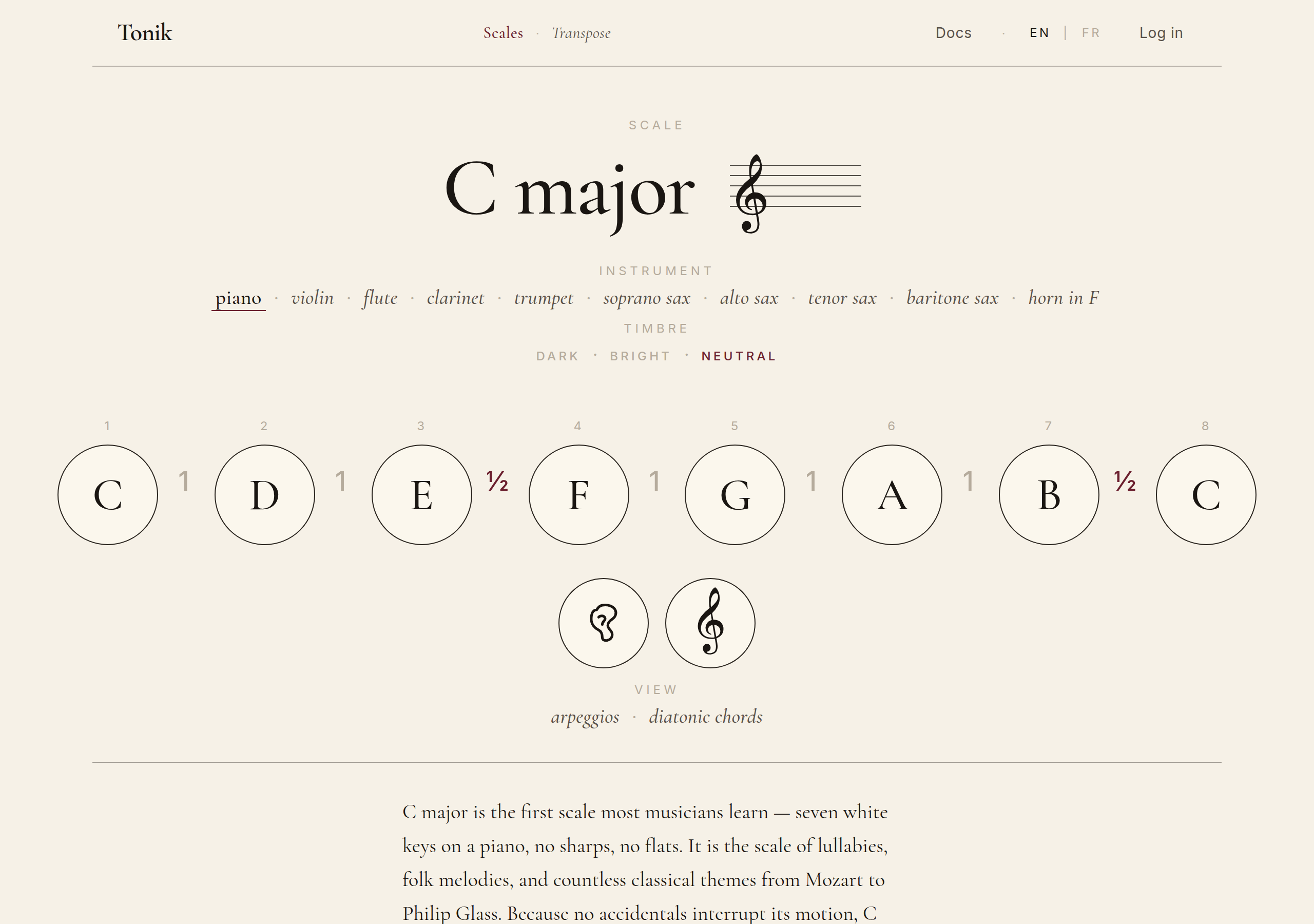
The page shows everything you need at a glance: the scale title in large Cormorant type; immediately below, the instrument and timbre selectors; centre-stage, the degree grid with intervals labelled (W = whole tone, H = half tone); and at the bottom, a short pedagogical note placing the scale in context.
The lower half of the page is a contextual panel that changes depending on what you want to explore: pedagogy (default), arpeggios, diatonic chords, ear training, or scale practice.
Chapter 3
The Scale page — anatomy
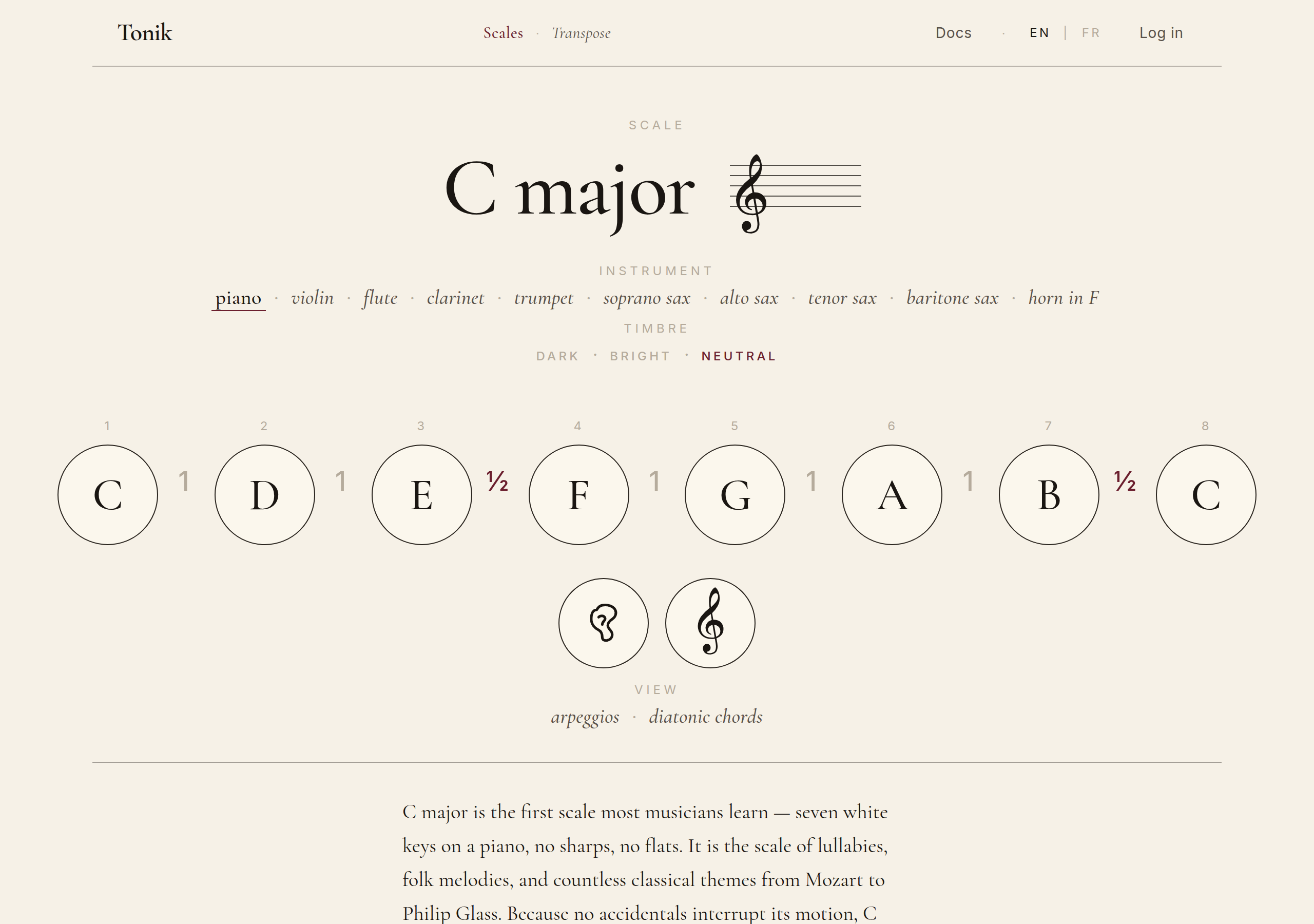
From top to bottom:
- The header: the Tonik brand on the left, language toggle (EN | FR) and Log in button on the right.
- The scale title: clickable in two parts — tonic and mode. Each part opens a picker so you can change the scale without leaving the page.
- Instrument and timbre rows: select the instrument that plays the scale (piano, violin, flute, clarinet, trumpet, the saxophone family, or do-re-mi-fa sung syllables) and the timbre flavour (sober, brilliant, neutral).
- The degree grid: each degree shown as a circle, with the interval to the next degree underneath (W or H).
- Two icons under the grid open the practice modes — ear training (left) and scale practice (right).
- The "view" cluster below the grid switches the lower panel between pedagogy, arpeggios, and diatonic chords.
- The bottom panel renders the chosen view in detail.
Chapter 4
Tonic, mode, instrument, timbre
Changing the tonic
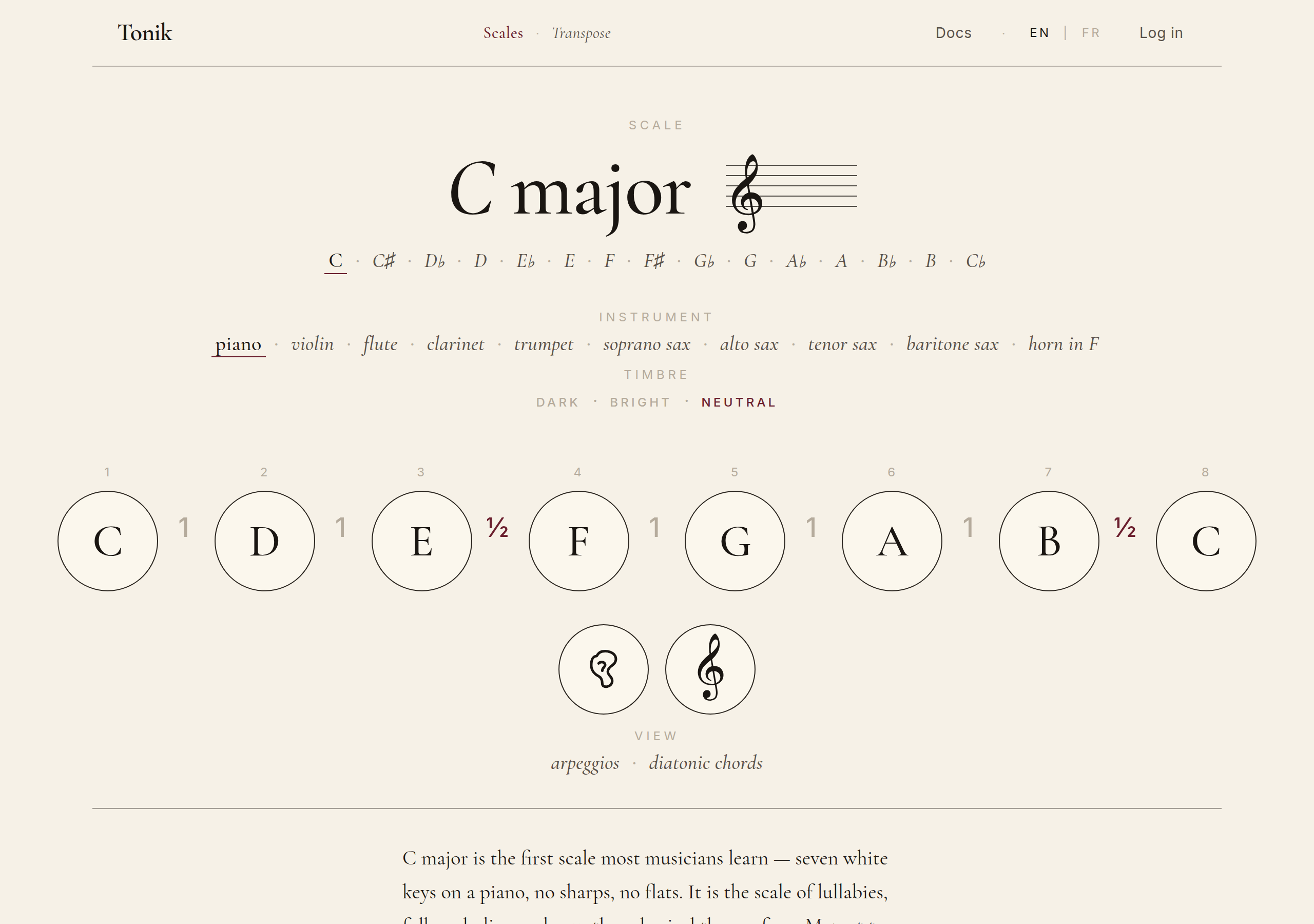
Click the tonic in the title and a list of the 15 tonics drops in just below it. Pick one and the entire page recomputes — degrees, key signature, pedagogy, arpeggios, chords — without a reload.
Changing the mode
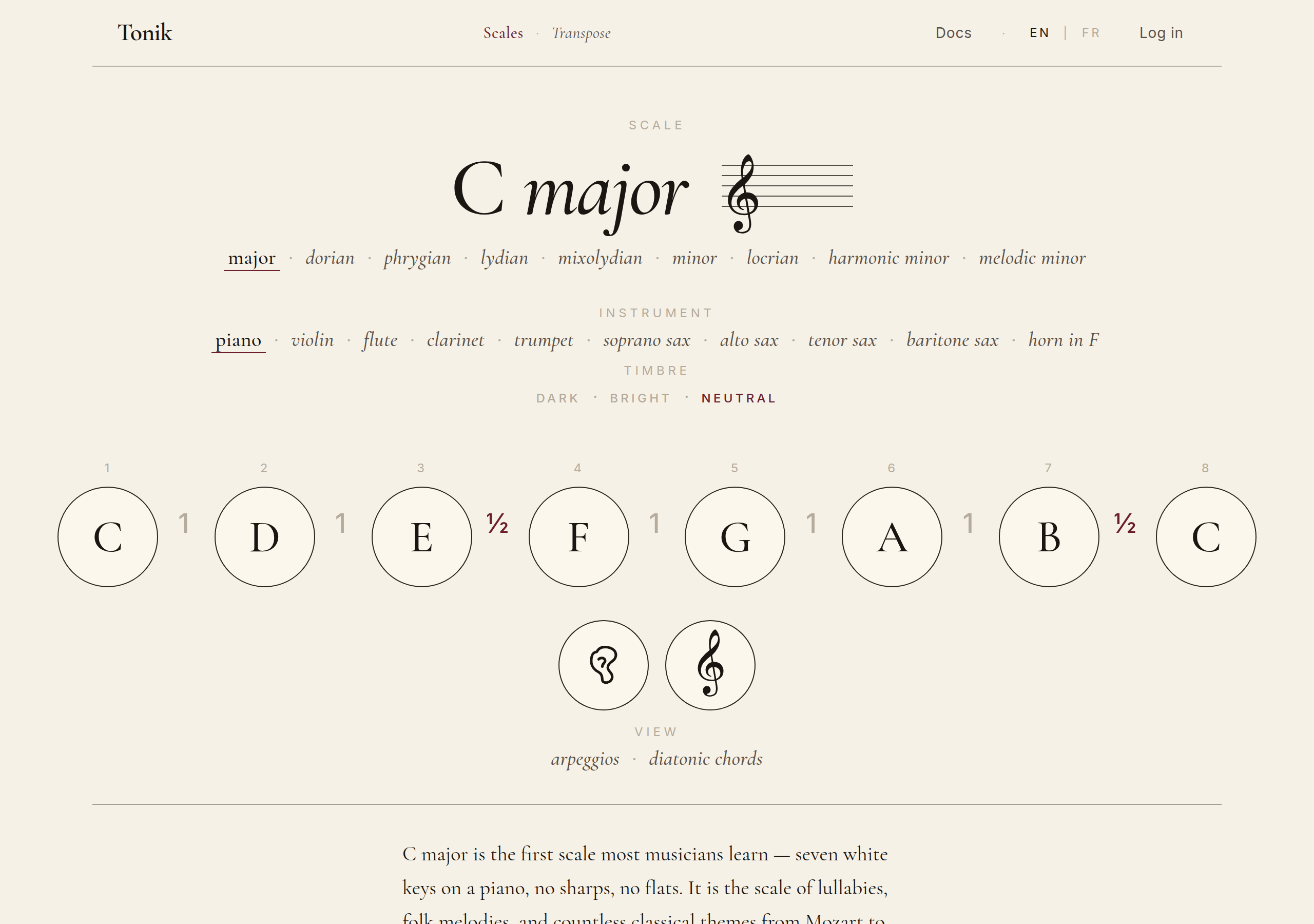
The second half of the title — major, minor, etc. — opens a similar picker. The seven modes of the major scale are listed (Ionian, Dorian, Phrygian, Lydian, Mixolydian, Aeolian, Locrian) along with the harmonic and melodic minor variants where relevant.
Instrument and timbre
Pick an instrument to change how the scale sounds when you press play on the degree grid or the lower panel. Tonik ships with sampled timbres (drawn from the standard General MIDI banks), and the timbre row offers three flavours per instrument — sober (neutral, classical), brilliant (forward, present), and neutral (the middle ground).
The do-re-mi-fa instrument is special: instead of an instrument timbre, it sings the solfège syllables of each degree. Useful for sight singing.
Chapter 5
Pedagogy
The pedagogy panel is what's open by default at the bottom of the page. It's a short, hand-written paragraph for the current scale — explaining where the scale sits in the major-key family, what its character is, what to listen for, and which pieces in the standard repertoire use it well.
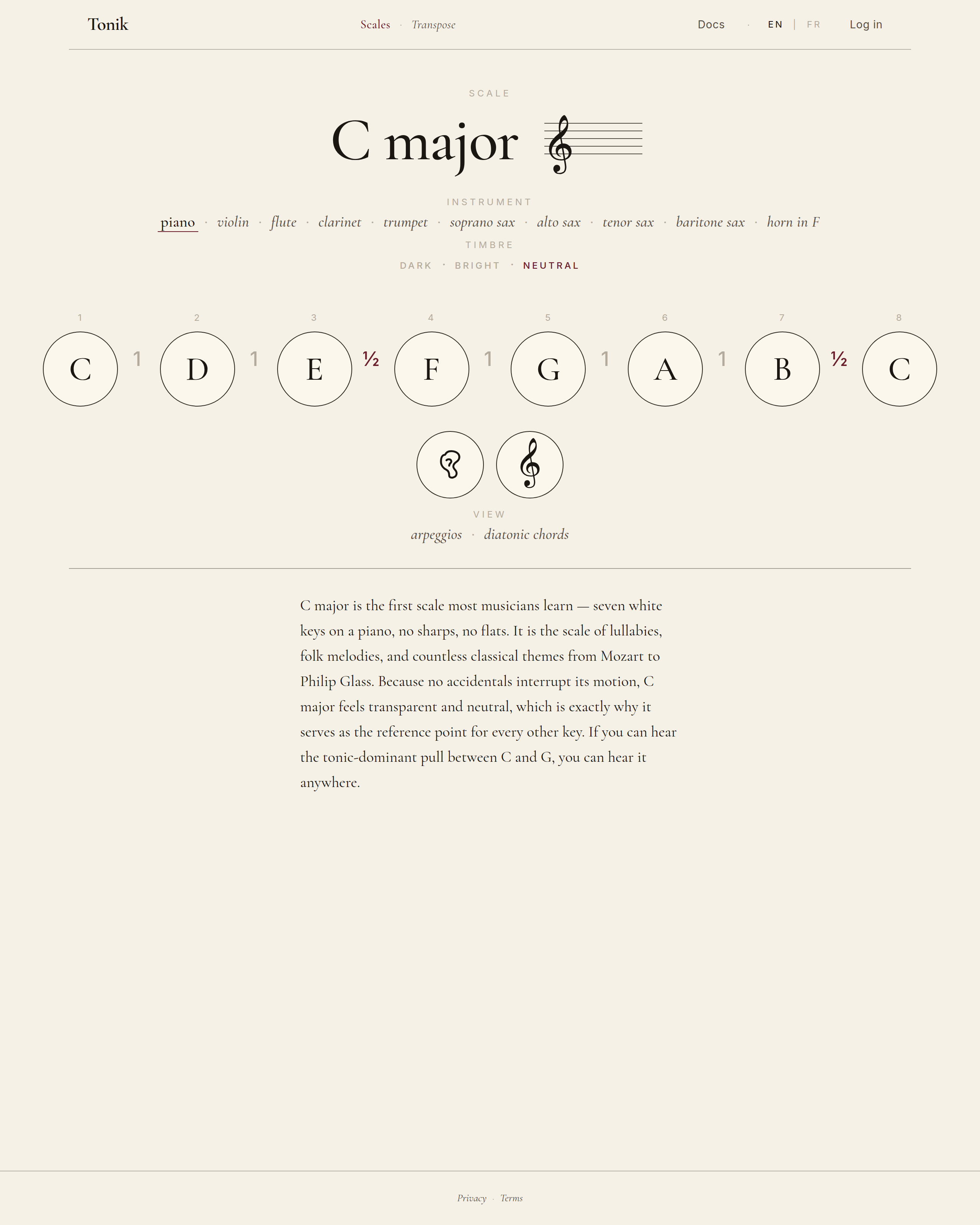
The texts are deliberately brief: a paragraph or two, no more. They're meant as orientation, not as a textbook. If you want to dig deeper, the pedagogy paragraph often points to a piece you can listen to.
Chapter 6
Arpeggios
The arpeggios panel lays out, for the current scale, the standard arpeggios you'd typically work through: triads, sevenths, ninths. Each row is one arpeggio family.
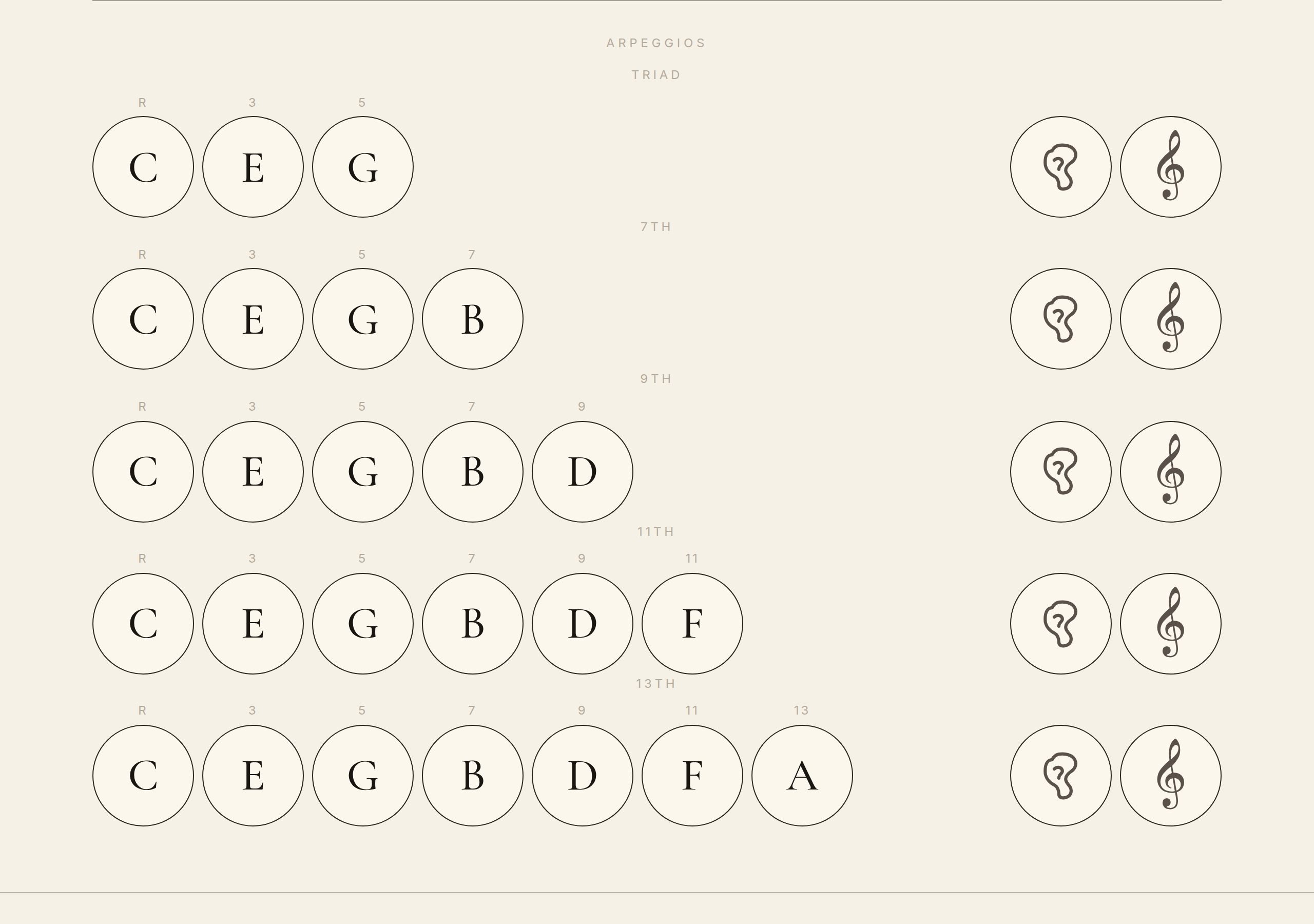
Lifting an arpeggio into a practice module
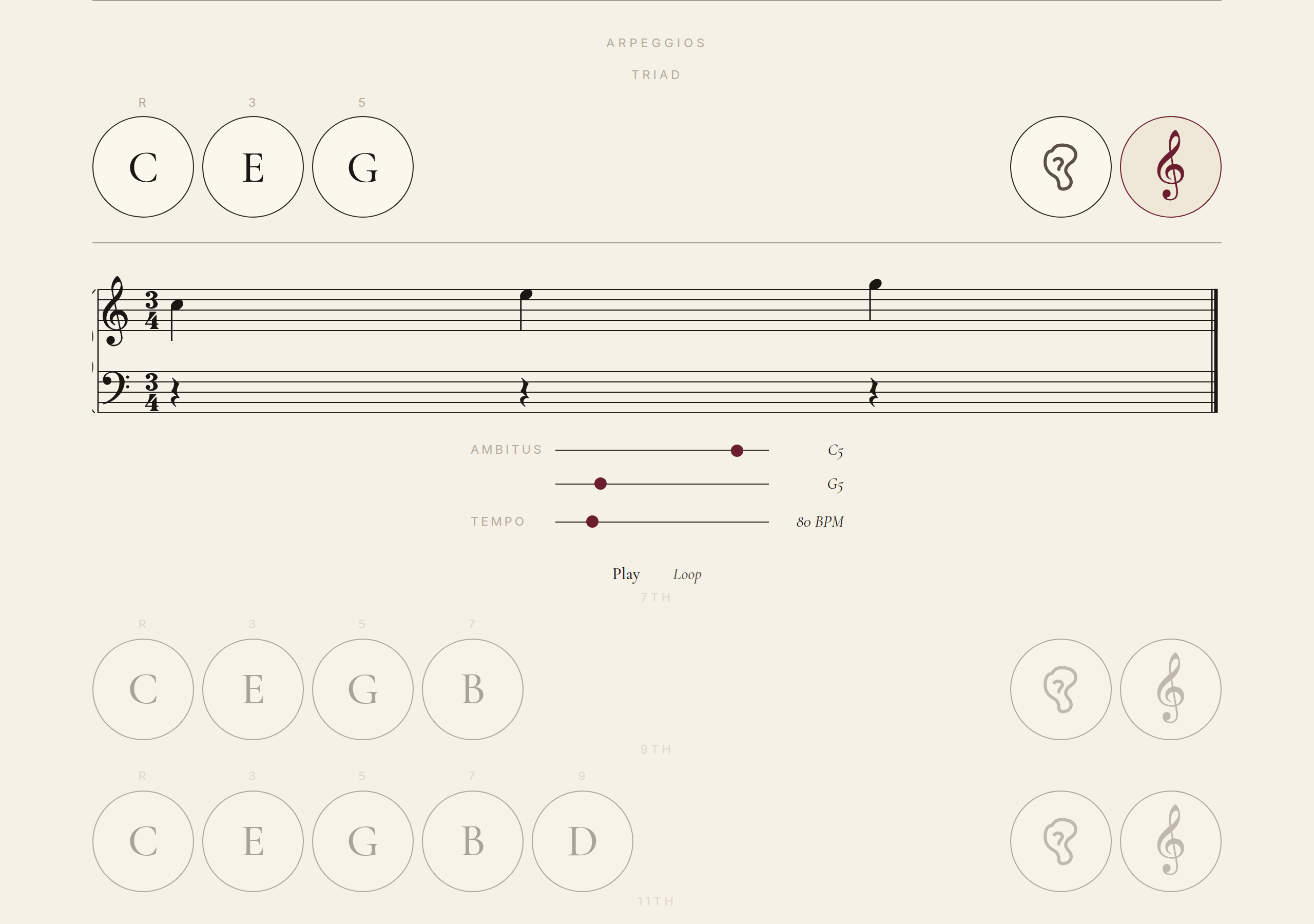
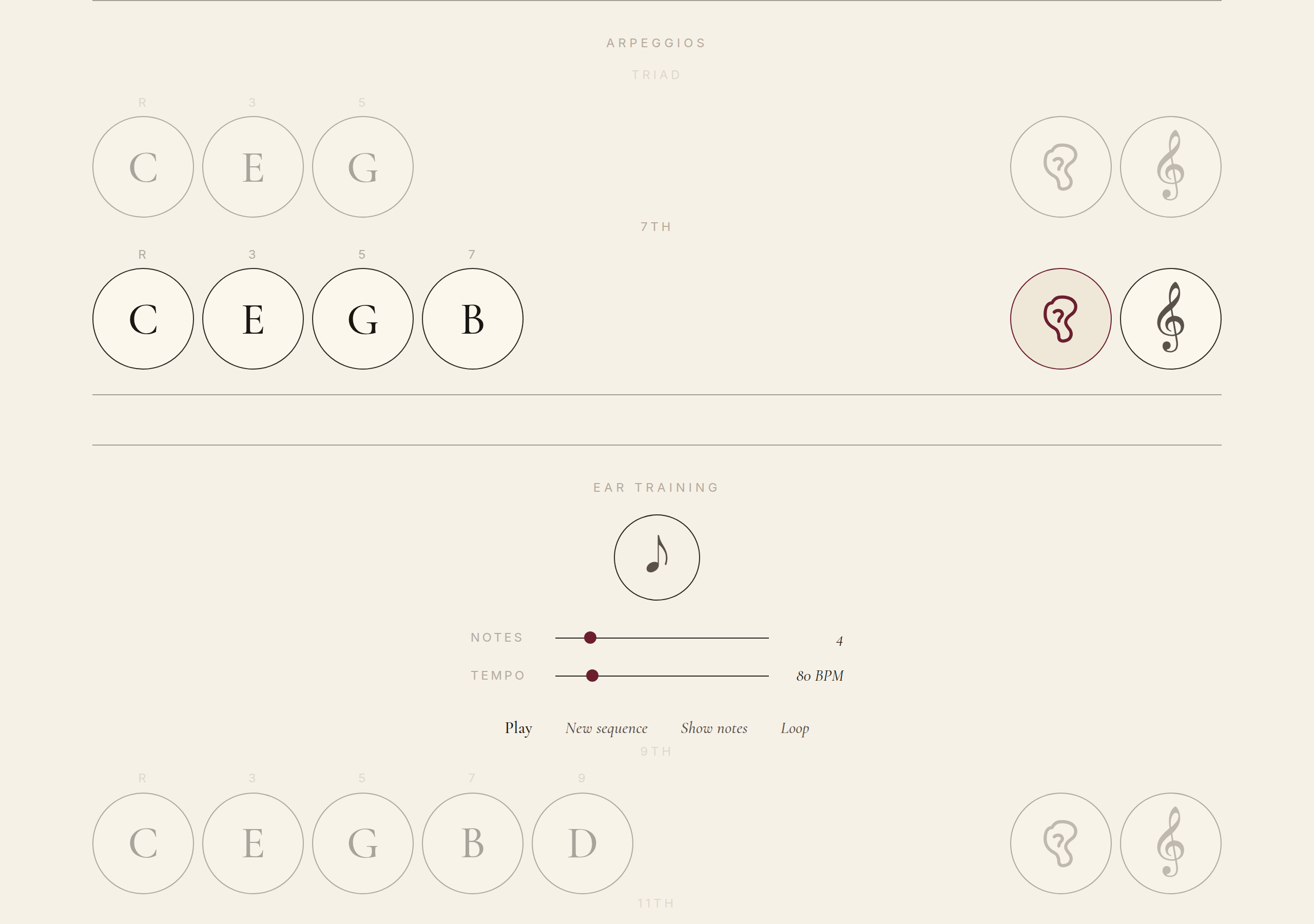
Each row has two icons on the right: a treble-clef icon (scale practice) and an ear icon (ear training). Clicking either of them lifts that specific arpeggio into the practice module — pre-configured with the right notes, the right tempo defaults, the right key.
Chapter 7
Diatonic chords
The chords panel shows, for the current scale, every diatonic chord — that is, every chord built only from notes of the scale. The display is organised by degree (I, ii, iii, IV, V, vi, vii°) and by chord type (triad, seventh, ninth, etc.).
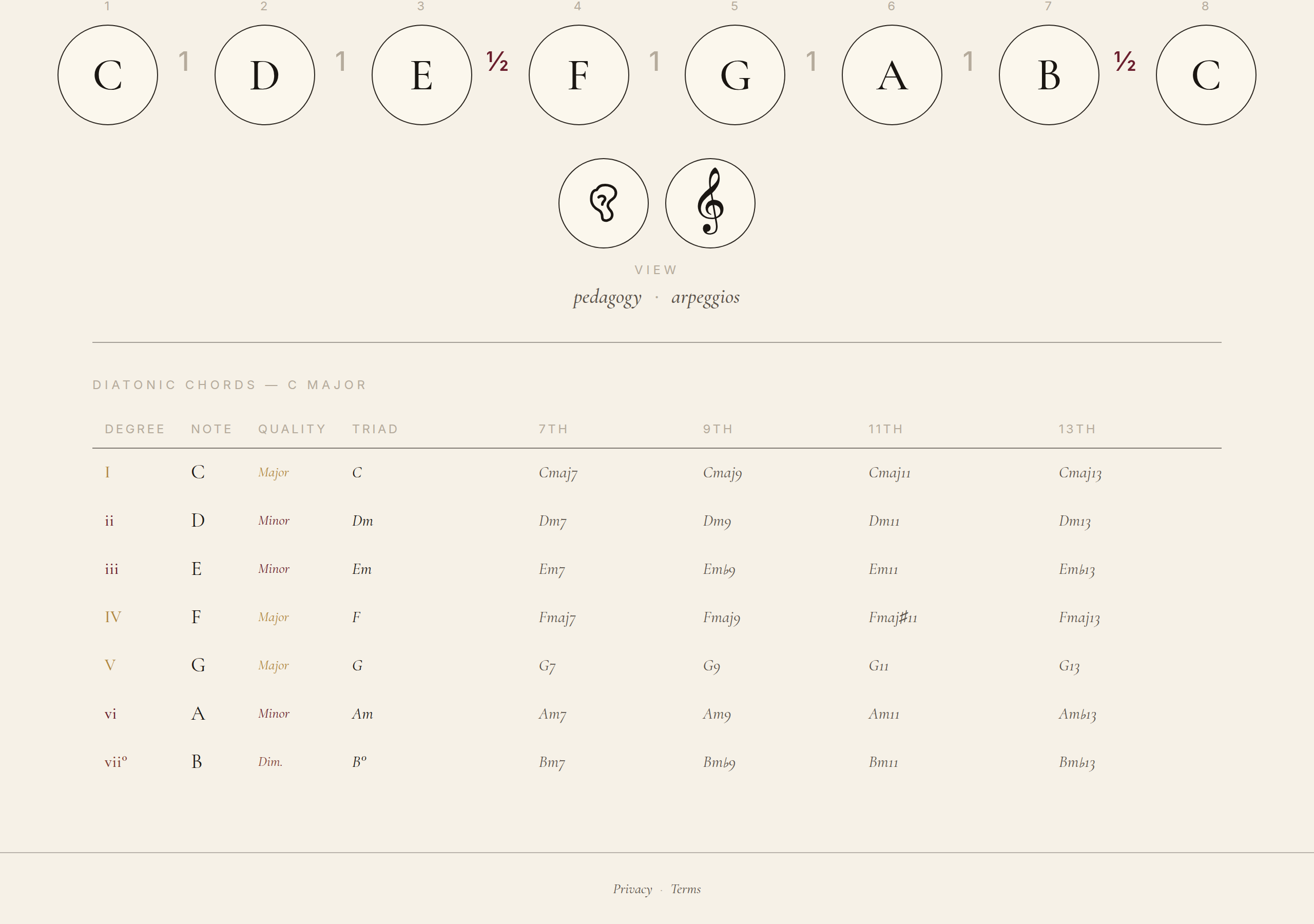
Lifting a chord into a practice module
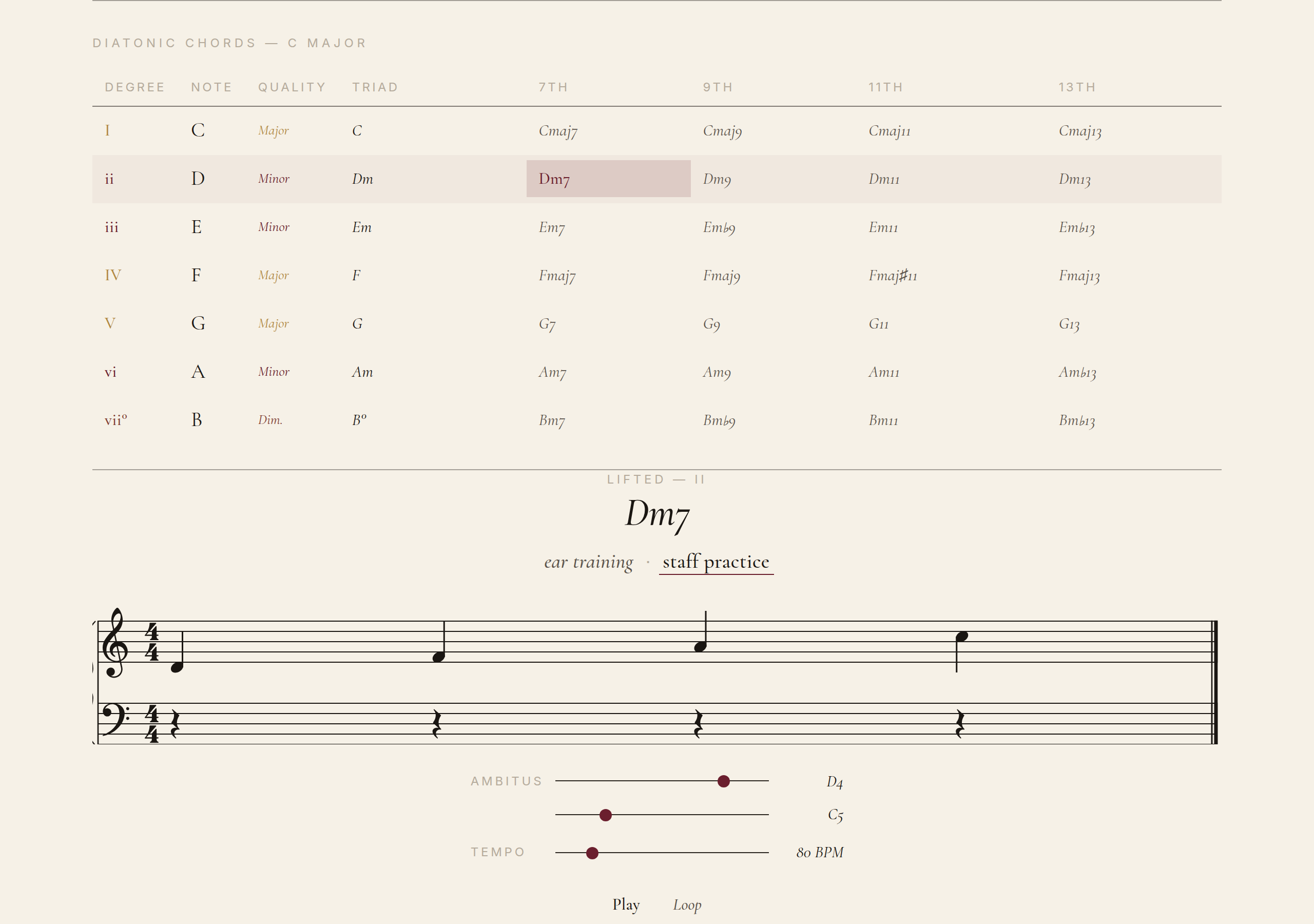
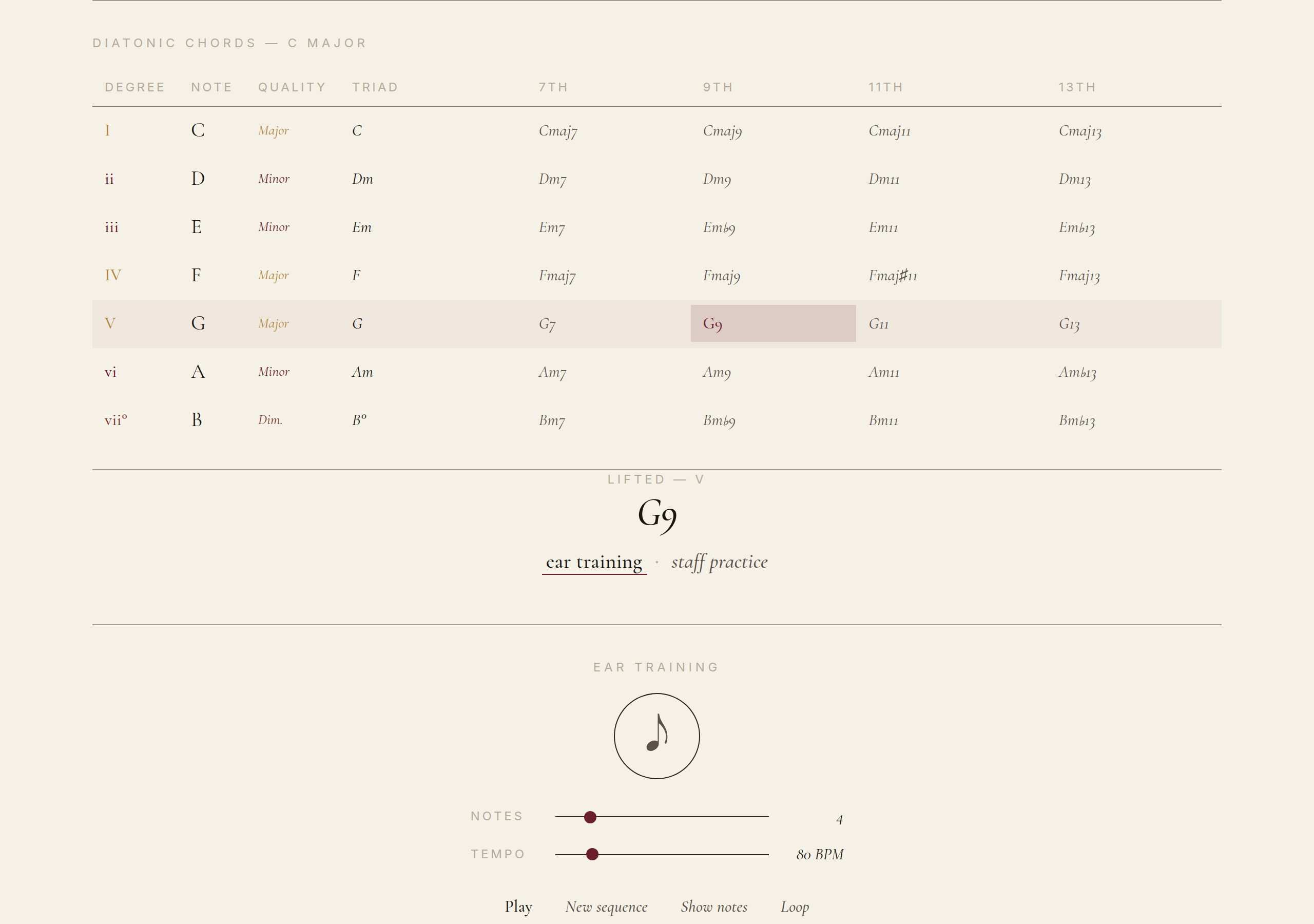
Same mechanic as arpeggios: each cell in the chord grid has a treble-clef icon and an ear icon. Click one and that specific chord is lifted into Scale practice or Ear training — ready to read or to guess.
Chapter 8
Ear training
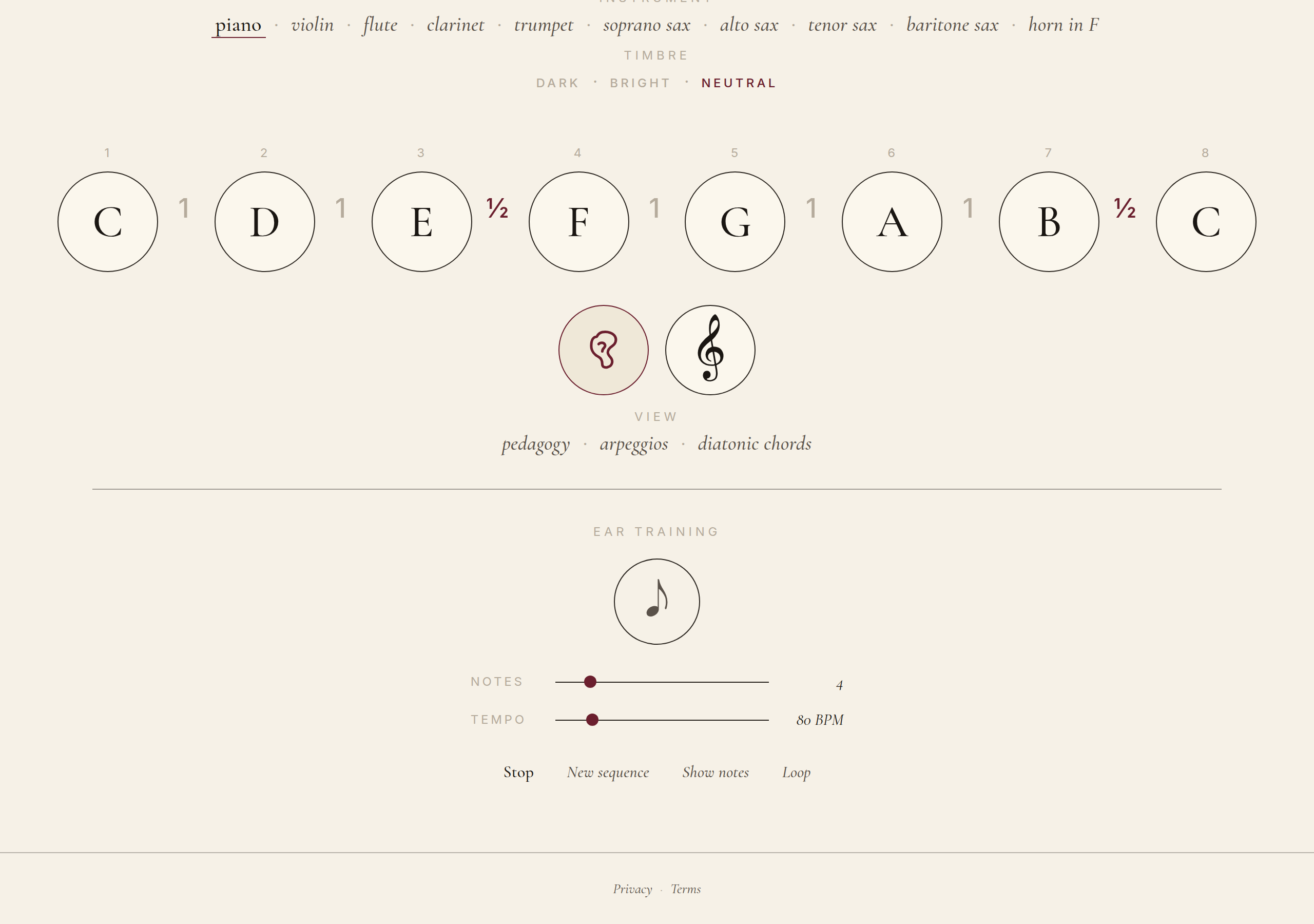
Ear training is the panel you reach by clicking the ear icon — either at the top of the Scale page or from any arpeggio/chord row. It plays a short sequence and asks you to identify what you heard.
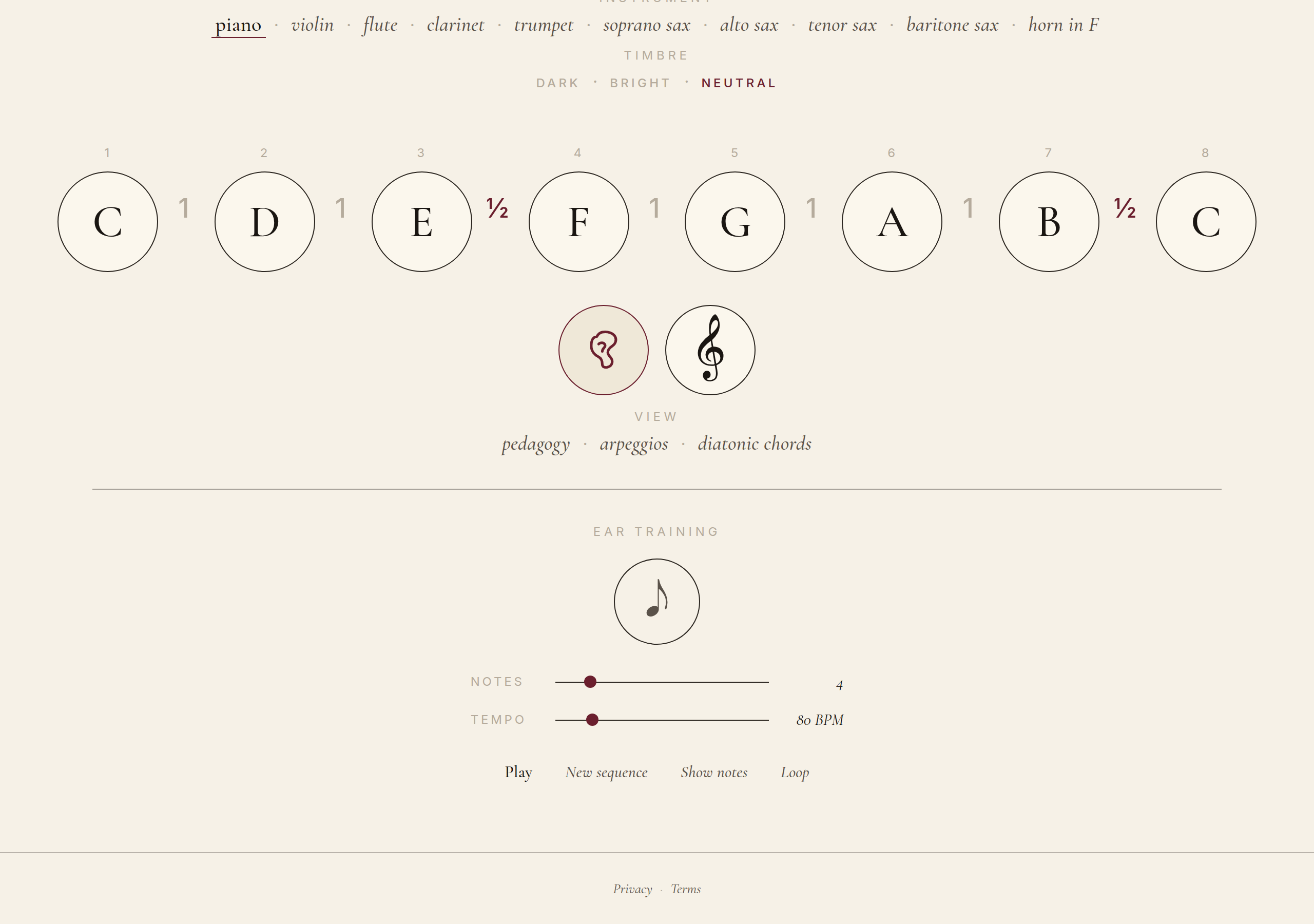
Press Listen to play the sequence. You can replay as many times as you want via the Loop control — looping plays back exactly the same sequence (same notes, same order), so you can listen until you're sure.
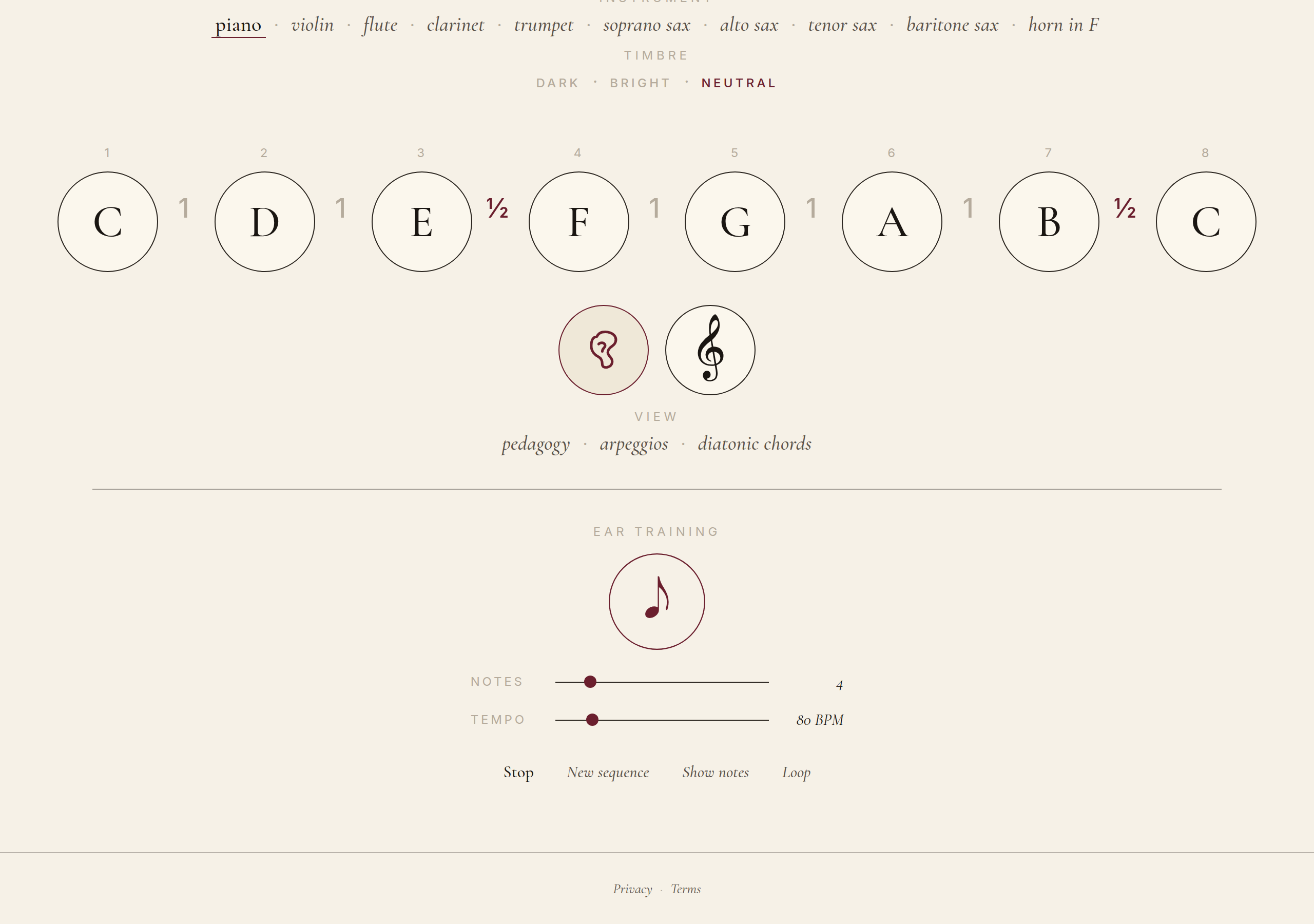
Once you've made up your mind, press Reveal. The notes you just heard appear on a staff, with the degrees labelled. You can then either play another sequence or change the difficulty.
Chapter 9
Scale practice
Scale practice is the staff-reading companion — you reach it via the treble-clef icon. It generates a melodic exercise from the current scale (or from a lifted arpeggio/chord) and renders it on a grand staff at a chosen tempo, so you can read along with your instrument.
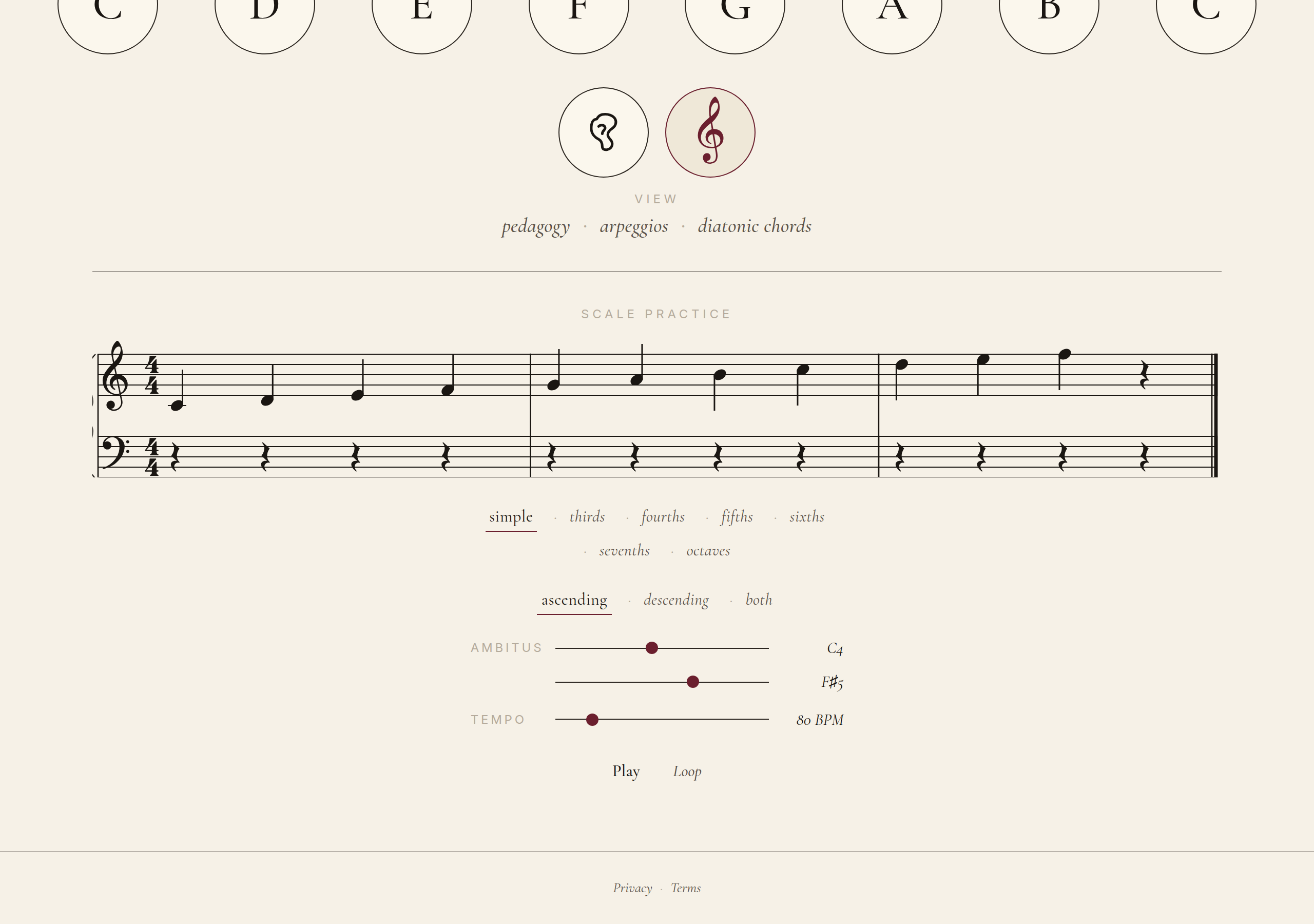
The exercise pattern is configurable — simple (degree by degree), or by intervals (thirds, fourths, fifths, sixths, sevenths, octaves). The direction can be set to ascending, descending, or up-and-back. The ambitus sliders cap the lowest and highest notes, so you can keep the exercise within your instrument's comfortable range.
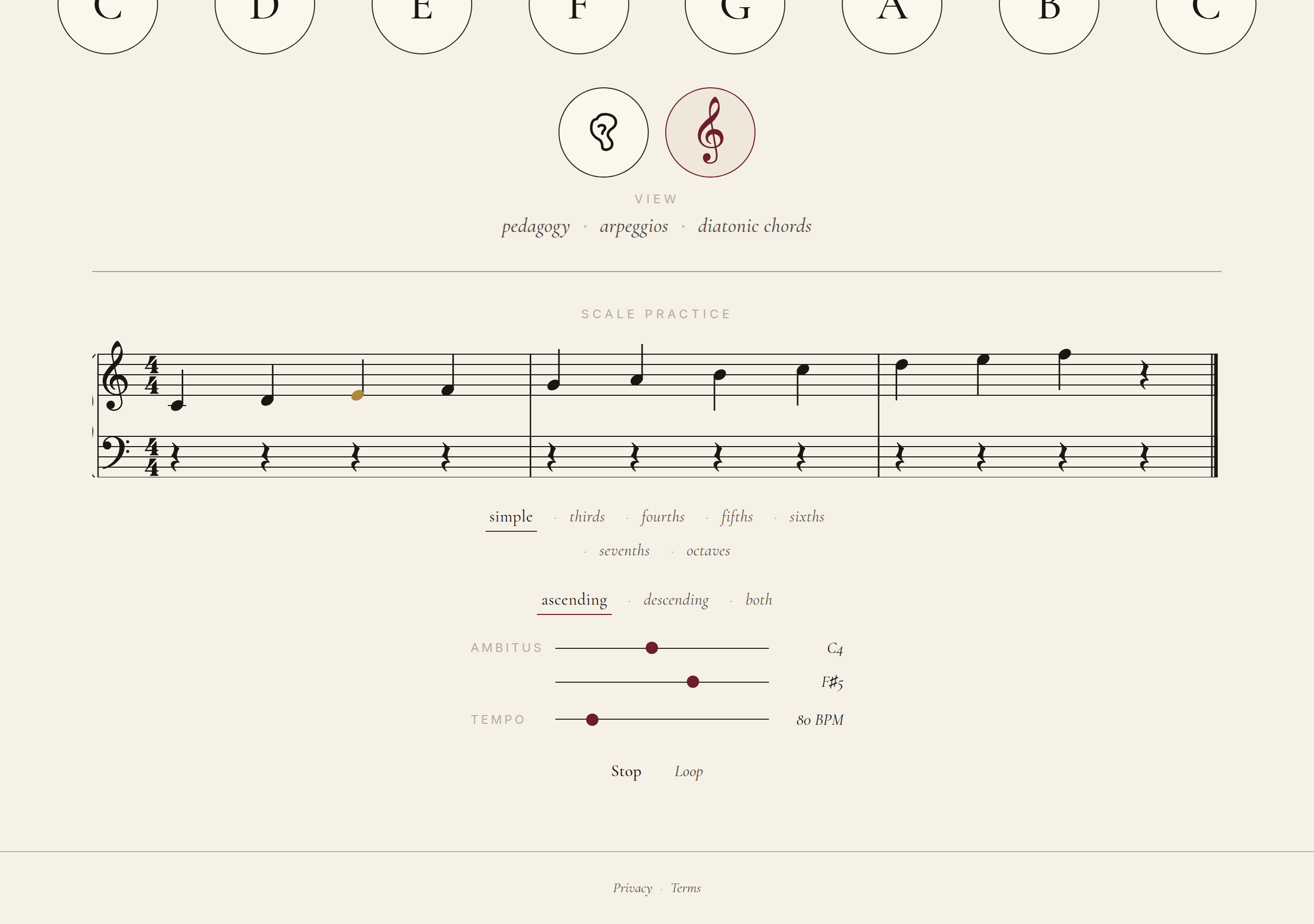
Press Listen and the exercise plays at the chosen tempo. The Loop control replays the same exercise — useful for repeated drilling. Tempo is in BPM, displayed next to the slider.
Chapter 10
Transposition
The Transposition module solves a specific problem for transposing instrumentists: read a part written in one key while hearing it in another. Drop a MusicXML file in, choose a source key (the key the score was written in) and a target key (the key you want to play in), and Tonik rewrites the part — armature, reading clef, note heights — and offers the result for export.
The module is reachable from the Transpose link at the top of every page (next to Scales). It requires a logged-in account (see Chapter 11) — the rewrite is more compute-intensive than the rest of Tonik so it's gated to keep usage reasonable.
Supported keys
Version 1 supports four source/target keys: C (concert), B♭, E♭, and F. That covers the great majority of common transposing instruments — clarinet in B♭, alto and baritone saxophones in E♭, French horn in F, trumpet in B♭, and so on. More keys will follow.
Loading a score
On first arrival, Transposition shows a default sample — a short melody —
so you have something to look at right away. To load your own score, drag
a MusicXML file (extensions .musicxml, .xml,
.mxl) onto the drop zone, or click Choose a file.
Tonik reads the file, validates it, and tries to detect the source key
automatically from the MusicXML <transpose> element if
present (when it's there it's authoritative). If the element is missing or
points to a key Tonik doesn't recognise, the source falls back to the most
common reading default — you can correct it manually.
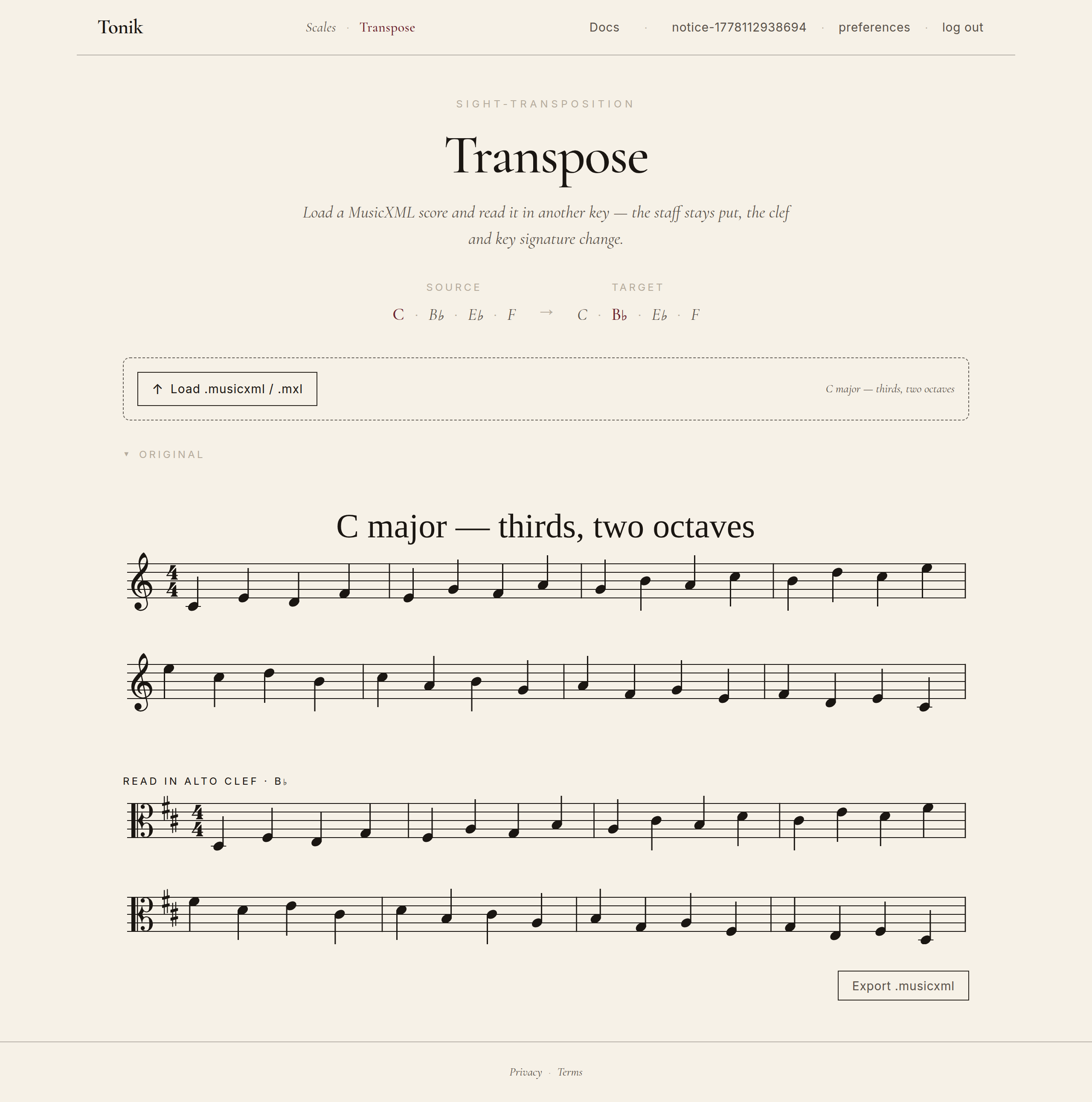
Picking source and target
Two key slots are visible above the score: Source on the left, Target on the right. Each slot has four buttons (C, B♭, E♭, F). Click a target and the score rewrites in real time — the staff updates, the armature changes, the reading clef switches if appropriate (alto clef for F-instrument reading, for instance).
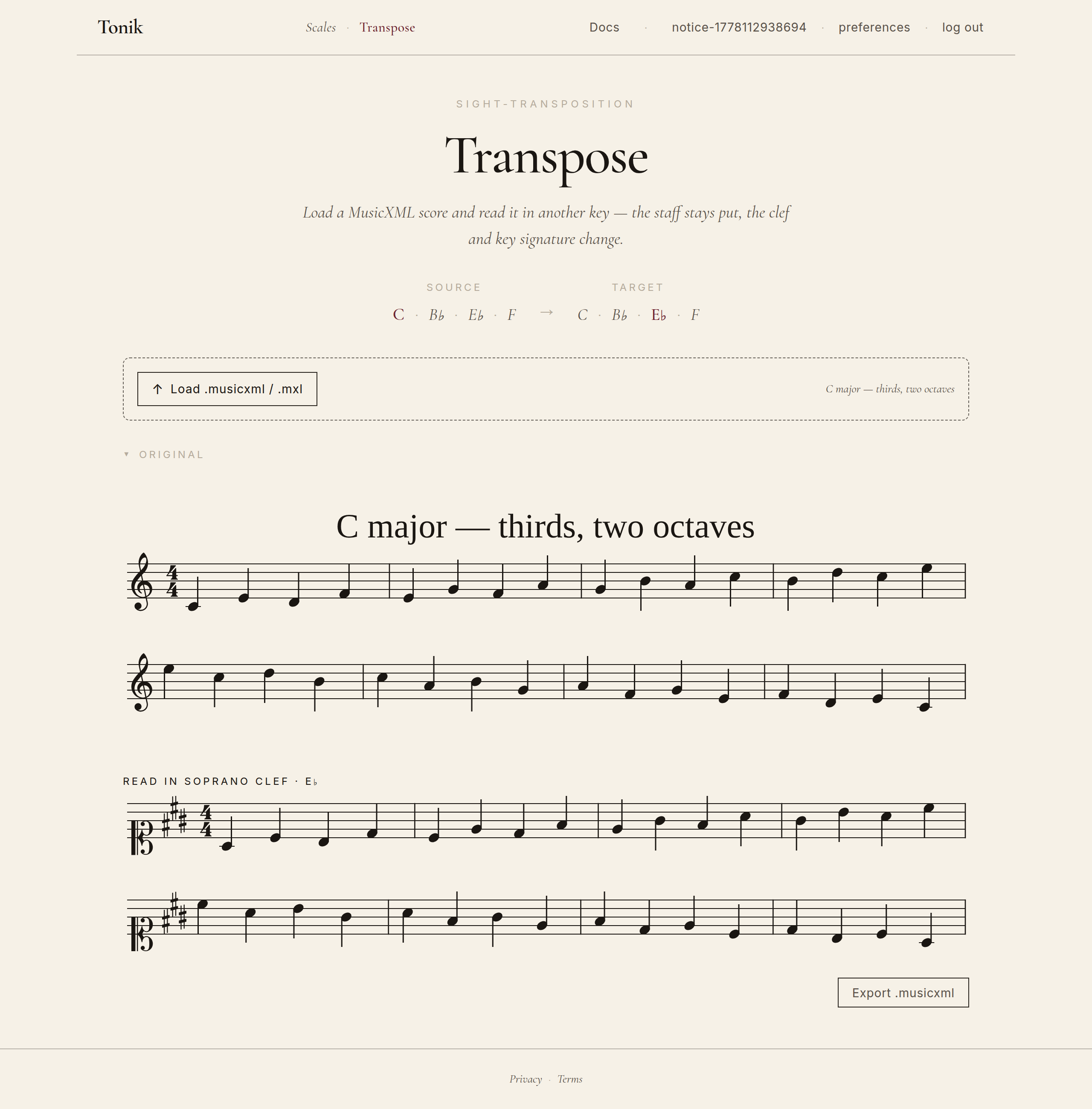
Exporting
The transposed result can be exported back to MusicXML so you can open it in your usual notation software (MuseScore, Finale, Sibelius, etc.) for further editing or printing. The export preserves the original markings where possible.
Known limits
- Export is MusicXML only — no PDF, no MIDI, no PNG.
- Multi-part files (full scores) are accepted, but only the first part is transposed in version 1.
- Complex ornaments and grace notes may be simplified during the rewrite.
Chapter 11
User account
Most of Tonik works without an account — browsing scales, playing arpeggios, practising — all of that is open. An account exists for two reasons: preferences that travel with you (your favourite instrument, timbre, language) and features that need a server-side cost cap (Transposition).
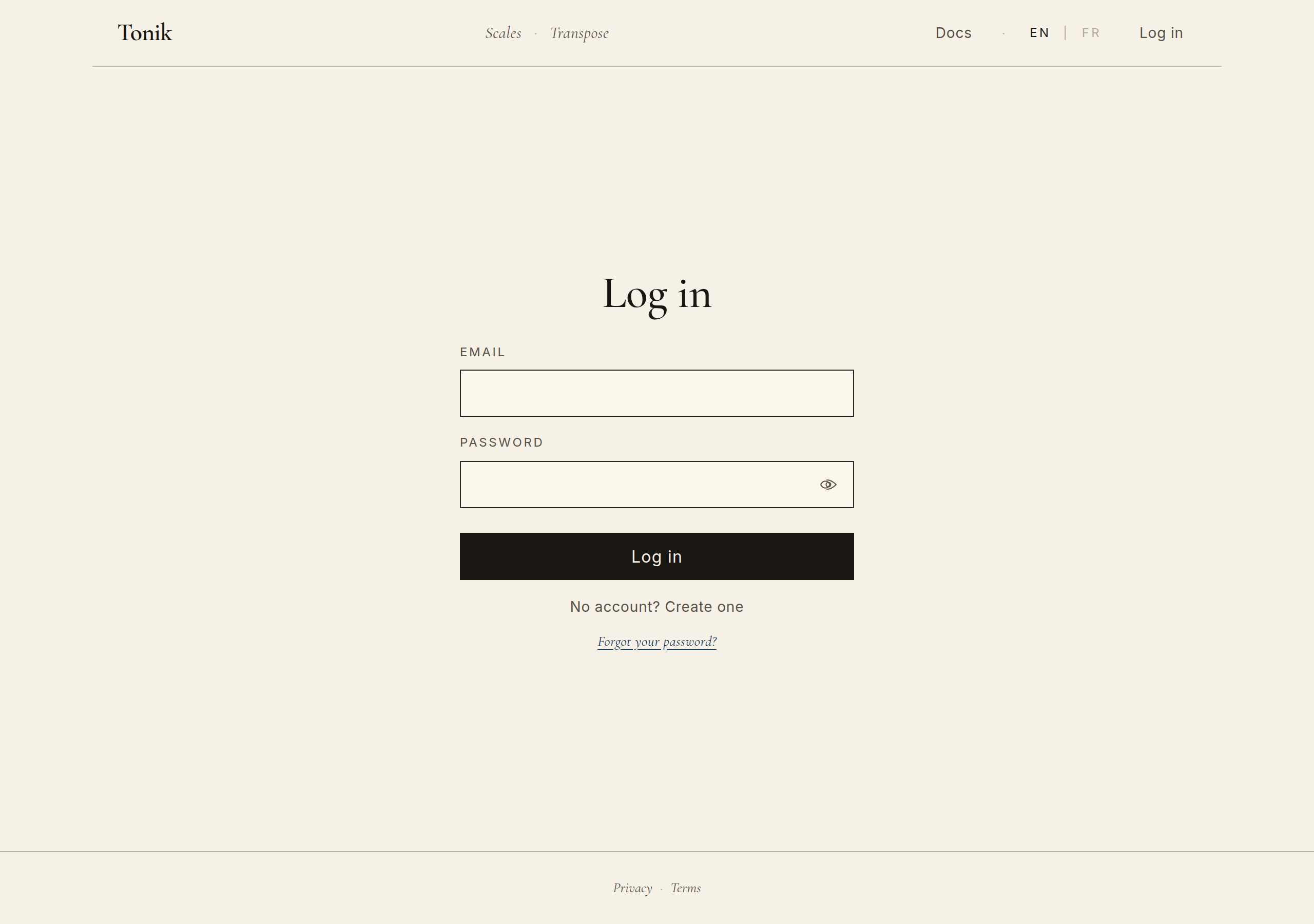
Creating an account
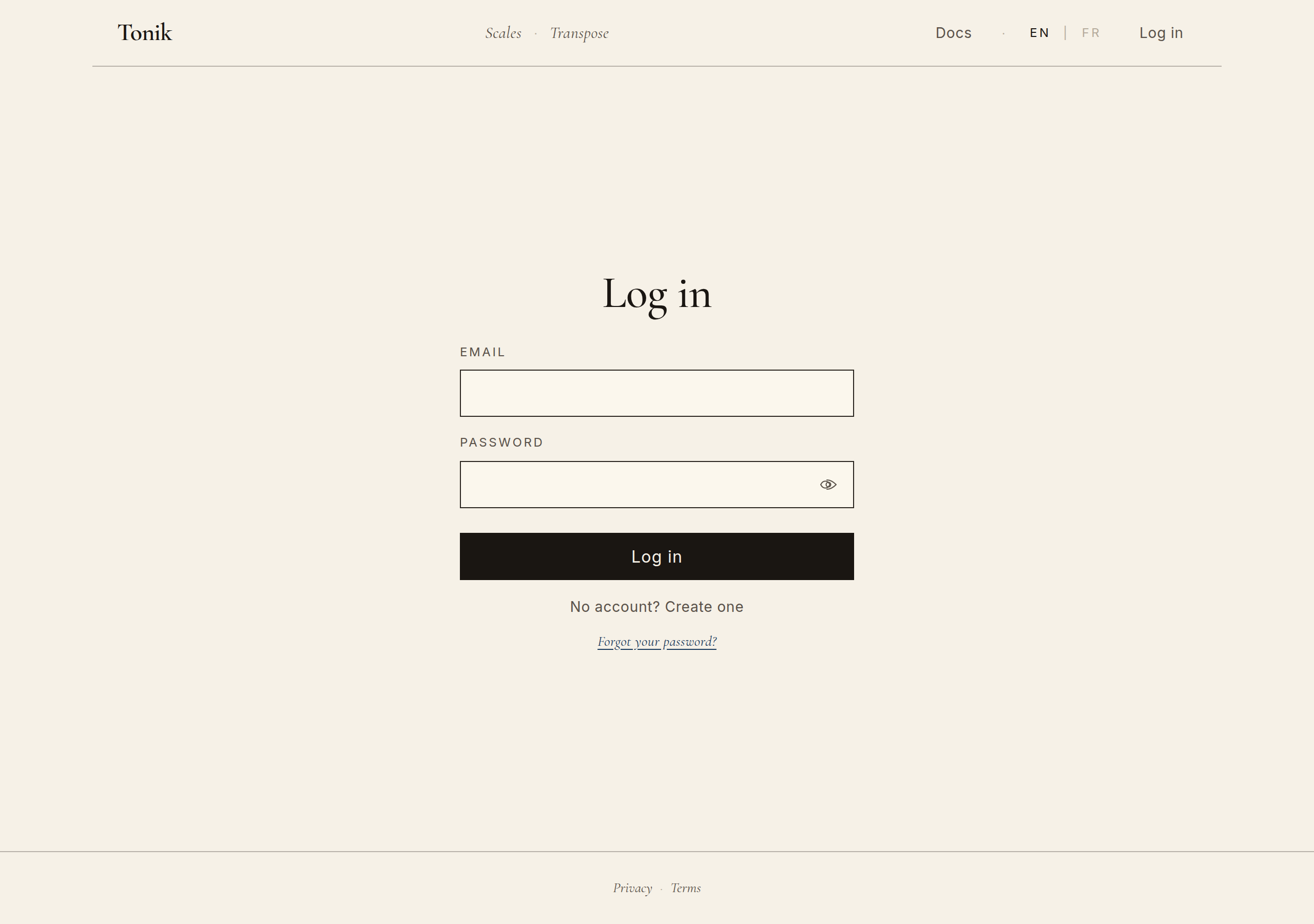
From the log-in screen, the Create one link opens the registration form. You need an email address and a password. No phone number, no name, no profile picture — Tonik doesn't want anything more than what's needed to let you back in.
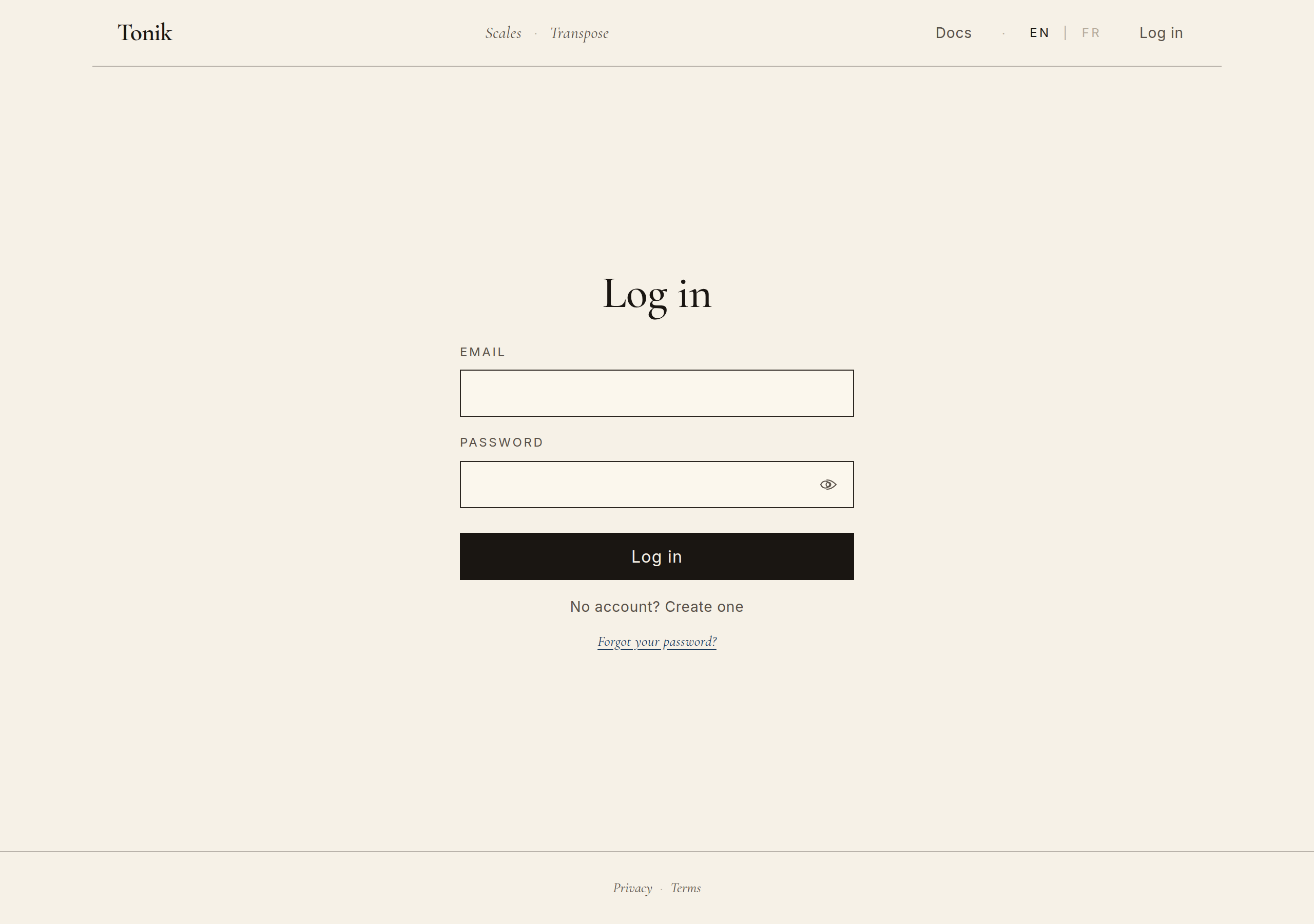
Forgotten password
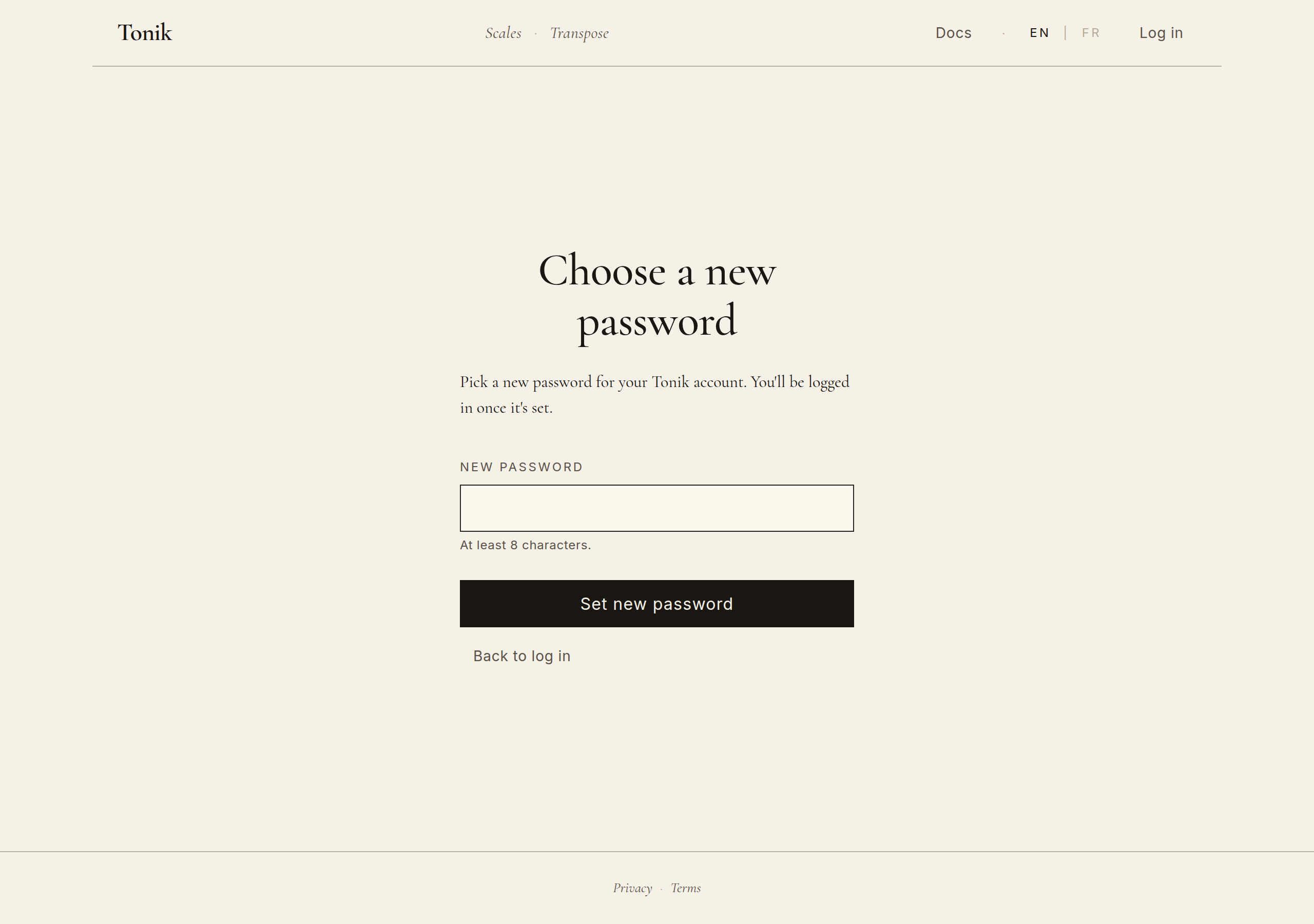
The Forgot? link sends a reset email. The email contains a link that's valid for one hour. Clicking it opens a fresh password form.
Account settings
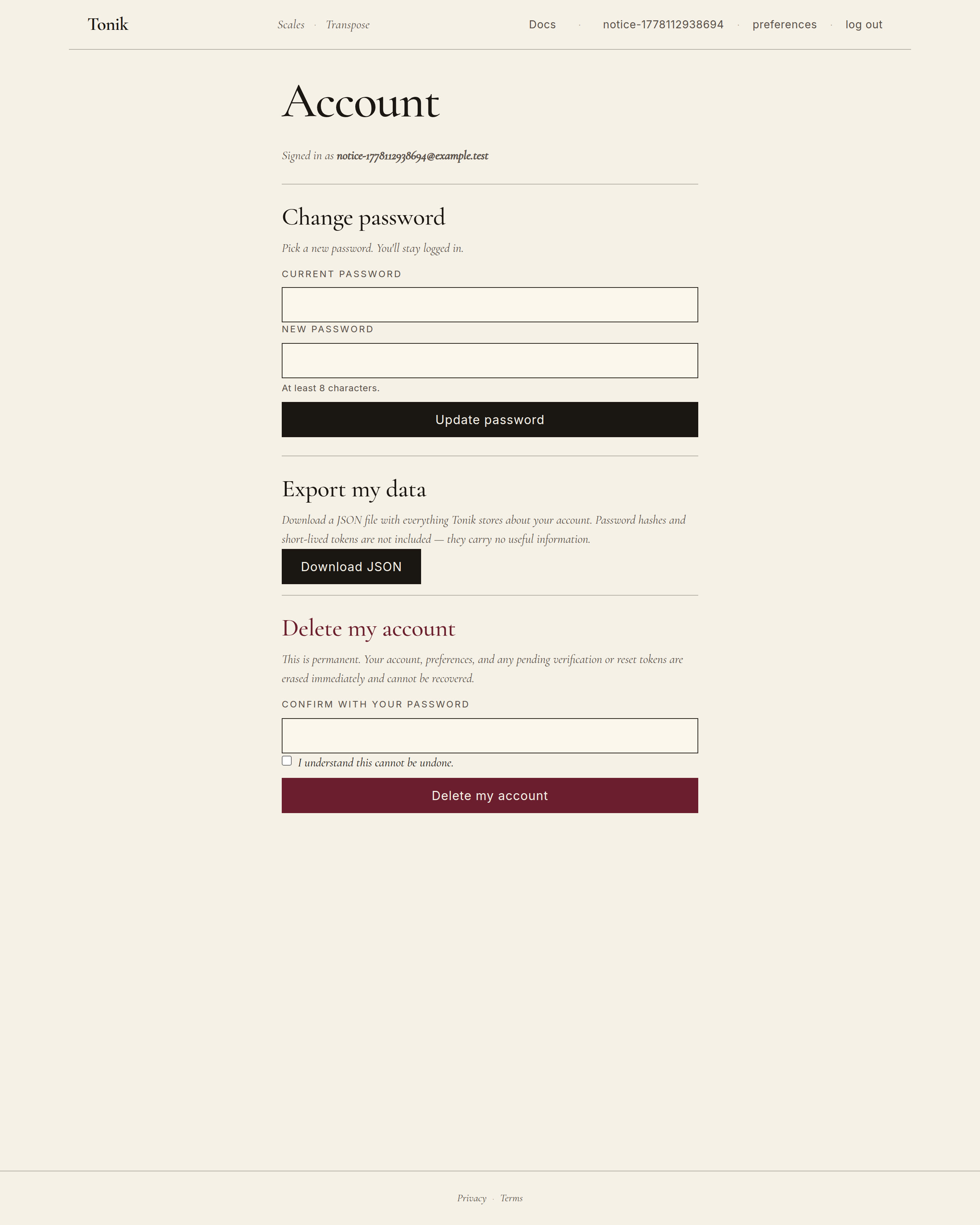
Once logged in, your display name appears in the top-right corner. Clicking it opens Account settings: change your password, change your email, sign out, or delete your account entirely.
Chapter 12
Preferences
Three things travel with your account once you're logged in: the instrument Tonik defaults to, the timbre, and the language (EN or FR). Set them once on any device and they follow you everywhere.
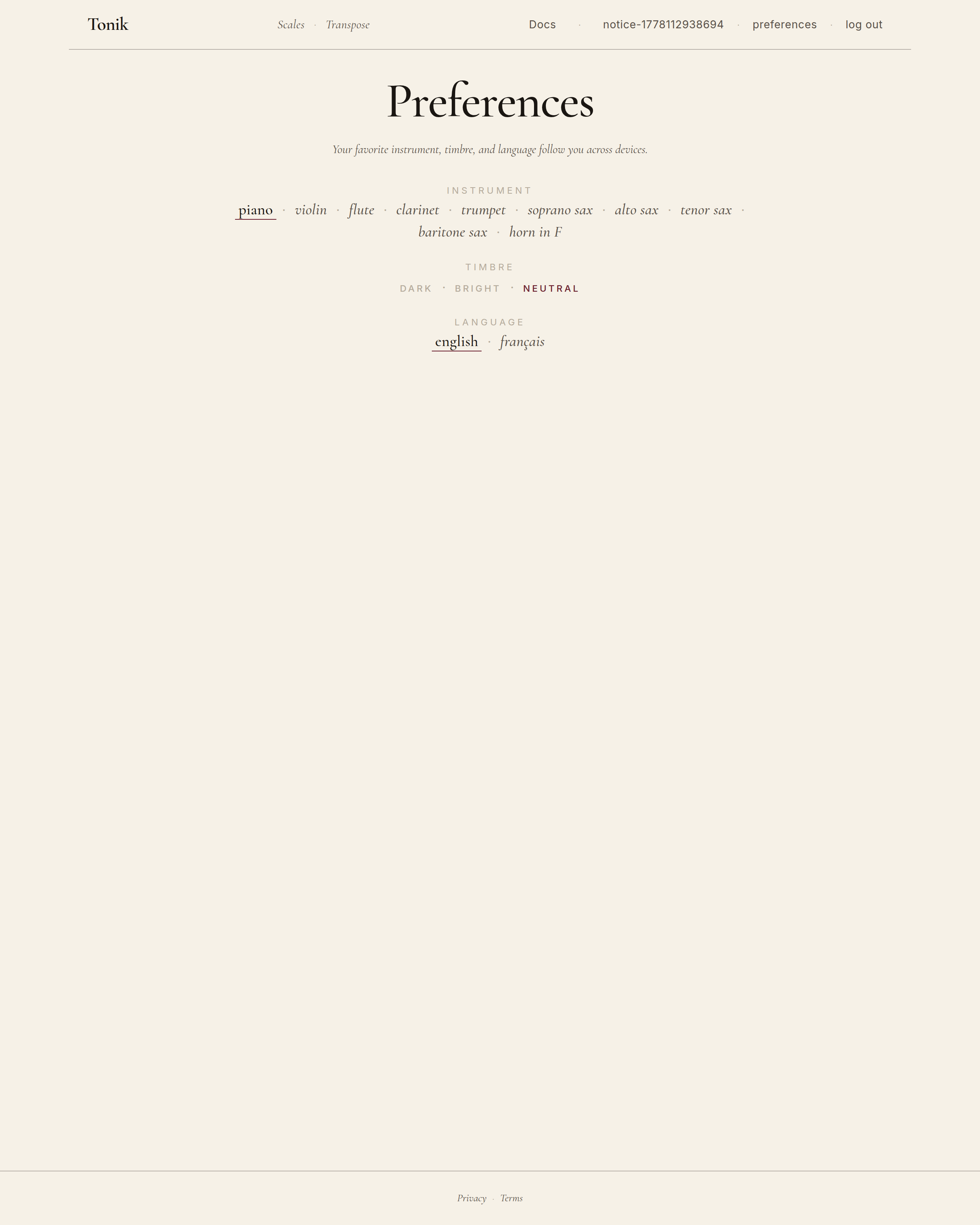
Preferences sync silently in the background. When you log in on a new device, the saved values are applied as soon as the bootstrap completes. Without an account, instrument and timbre are remembered locally per browser; the language is set via the EN | FR toggle in the header.
Chapter 13
URL sharing (deep-link)
Every meaningful state in Tonik lives in the URL. That means you can share a specific view with a colleague or a student by copy-pasting the address bar — they land on exactly the same scale, panel, lifted arpeggio, etc.
Examples of what's encoded in the URL:
- Current scale:
/scales/c-major,/scales/e-flat-minor, etc. - Lower panel:
?panel=arpeggios,?panel=chords,?panel=ear-training. - A lifted arpeggio:
?panel=arpeggios&row=triad&module=staff-practice. - A lifted chord:
?panel=chords°ree=2&row=seventh&module=ear-training. - The Transposition module:
/transpose.
No tracking parameters, no shorteners, no required login on the recipient side. The URL is the share format.
Chapter 14
Offline (PWA)
After your first visit, Tonik works offline. The first time you open
tonik.ink on a device, the browser caches the app shell, the
fonts, the icon, and the soundfont samples needed to play. The next time
you open it — train, plane, basement rehearsal room — the page mounts
without needing a network connection.
On modern browsers, you can install Tonik as a standalone application: a small button typically appears in the address bar, or you can use Add to home screen from the browser menu. The installed app opens in its own window, without the browser chrome — closer to a native app feel.
What needs the network
- Account actions — log in, register, password change, delete account, preference sync.
- Transposition — the rewrite runs server-side.
Everything else — browsing scales, playing arpeggios, practising — works without a connection.
Chapter 15
Appendix — FAQ & links
Frequently asked
Can I change the default instrument permanently?
Yes — log in and set it on the Preferences page. The default propagates to every device you sign in on.
Why doesn't my exotic timbre exist?
Tonik ships with sampled General MIDI banks. Tonik isn't a synthesiser — if a particular instrument or articulation isn't in the GM standard, it isn't in Tonik (yet).
Why is Transposition limited to four keys?
Version 1 covers the most common transposing-instrument keys (C, B♭, E♭, F). More keys will land in subsequent versions; the framework already handles arbitrary intervals — the gating is testing-time, not engineering-time.
Is my email address shared with anyone?
No. The only place your email is used is for log-in, password reset, and the deletion-confirmation step. There is no analytics tracking, no third-party sharing, no marketing list.
Where is the data stored?
On a single VPS in Europe. There is no third-party CDN for the app shell; everything is served from one origin.